
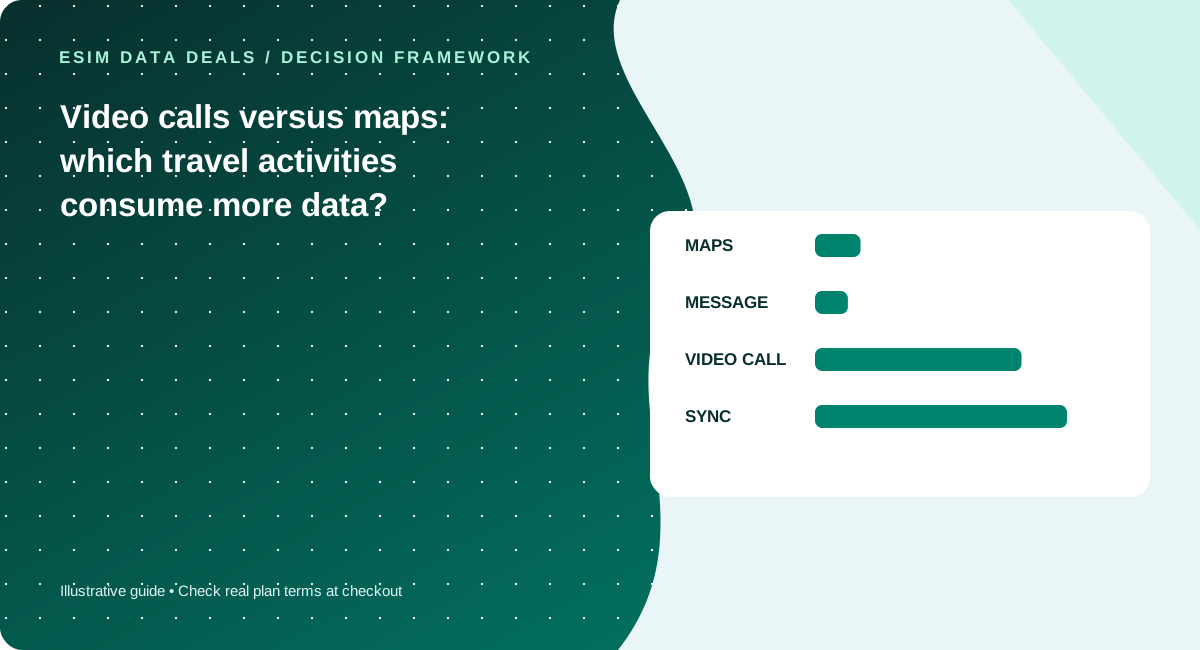
Maps and text messaging often consume relatively little compared with HD video, cloud backup and laptop updates. Use your own device statistics or conservative task estimates, then add a buffer.
Map data depends on what you load
Turn-by-turn navigation may reuse downloaded maps, while real-time imagery, map searches and new regions download more content. Download offline areas over trusted Wi-Fi before departure; remember that live traffic and search results still require connectivity. A navigation app’s total data use can vary widely by geography and behavior.
Video is often the dominant variable
A 30-minute video call consumes much more data than sending a few text messages, but it is not a single fixed number. Resolution, network, app codec and number of active streams all affect usage. Treat published ranges as estimates and consult your app’s usage reporting to calibrate them.
Photo synchronization and automatic updates are easy to miss
An always-on cloud backup can upload dozens of photos in the background while a small travel plan is active. Configure Wi-Fi-only uploads and large app updates, and pay attention to automatic video playback in social feeds. This helps without requiring you to disable essential messaging and maps.
Use measured usage when available
Both iOS and Android offer cellular usage information, with different reset periods. Record a typical week before departure if practical. Then translate the likely travel pattern into a daily allowance and add extra headroom for disruption days, unfamiliar apps and occasional hotspot use.
A practical use diary
For one ordinary weekday, note the time spent on maps, messaging, social feeds, meetings and cloud backup. You may discover that a short HD meeting dominates the data total while navigation contributes relatively little, especially if map areas were downloaded on Wi-Fi. Repeat the diary for a travel day, a sightseeing day and a heavy workday to avoid modeling the entire trip on one unrepresentative morning. The specific gigabytes depend on app behavior, video quality and device settings. Instead of presenting a single “maps use X MB per hour” number as universal, treat estimates as adjustable and refine them with phone usage statistics. The V22 activity calculator is a starting point and displays its input assumptions explicitly; it is not a test of your carrier or chosen eSIM plan.
Reduce waste without undermining convenience
Large photo and video backups, operating-system updates and auto-playing video feeds can consume allowance in the background. Configure them for reliable Wi-Fi when practical and download essential maps before leaving accommodation. Be cautious about disabling notifications that carry important trip changes, payment alerts or safety messages. On a shared hotspot, one laptop might trigger a large automatic update; a metered-connection setting can help control that. After the first travel day, check cellular statistics to see whether the forecast is running high or low and revise the remaining budget. If your data usage increases suddenly, first identify the responsible application rather than immediately blaming network throttling. Full-speed and hotspot restrictions remain contract questions that app usage measurement alone cannot resolve.
Five checks before you pay
- Review current phone cellular usage
- Download offline map regions
- Limit cloud photo backup to Wi-Fi when appropriate
- Estimate video meeting duration separately
- Recheck data after the first travel day
Common mistakes to avoid
- A headline GB number without validity context is incomplete
- Not all “social media” activity uses the same data
- A throttled connection may still consume data while performing poorly
Work with your real itinerary or quotes
Use our free in-browser calculator, then verify live plan stock, exact destination coverage and final charges directly with TripoSIM.
Commercial disclosure: we are owned by BroadNet and promote TripoSIM. No specific retail SKU or guaranteed price is represented here.
Source notes and review standard
This page is educational editorial analysis dated 5 November 2026. It does not claim field measurements, current retailer inventory, exclusive third-party quotes or verified network speeds. Confirm the exact product terms and local phone configuration before paying.
Additional context: our research methodology and editorial standards.
Continue reading
5G icon but slow travel internet? A realistic troubleshooting guide
Why network generation, signal strength, plan caps and congestion are different variables.
Hotspot connects but laptop has no internet: travel eSIM checklist
Isolate the phone connection, tethering permission and laptop settings without deleting the eSIM.